
The Mixer
Set the level, pan, outputs and effects of the channels, the 6 buses and the Master.
The Mixer is the stage itself: the channels are console strips. Besides them there are 6 buses and the Master, which take the sound to the outputs of your audio interface.
The channel strip
| On the strip | What it does |
|---|---|
| Number and name | In the channel’s colour. Tapping the strip selects the channel. |
| Edit | Opens the channel drawer: sound, macros, MIDI, audio and channel. |
| Effect slots | The channel’s effects (Desktop and Tablet). The light turns it on and off; the name opens the effect. |
| PAN | From −50 to +50. |
| Fader | The level, from −60 to +6 dB, with the meter next to it. |
| Macros | The channel’s macro panel. |
| MUTE | Blocks the keyboard input to the channel (see Mute). |
In the Phone layout the strip shows no effect slots: use Edit › Audio.
Using the controls
- Drag the fader or knob: the value moves from where it is, without jumping.
- Hold Shift for finer movement.
- Double-click to type a value.
- Ctrl (or Alt) + click goes back to the default value.
- Right-click to map the control to a button of your controller.
The buses and the Master
Tap the L / R meter at the top of the screen (or press M) to open the Master and the buses. Tap again to go back.
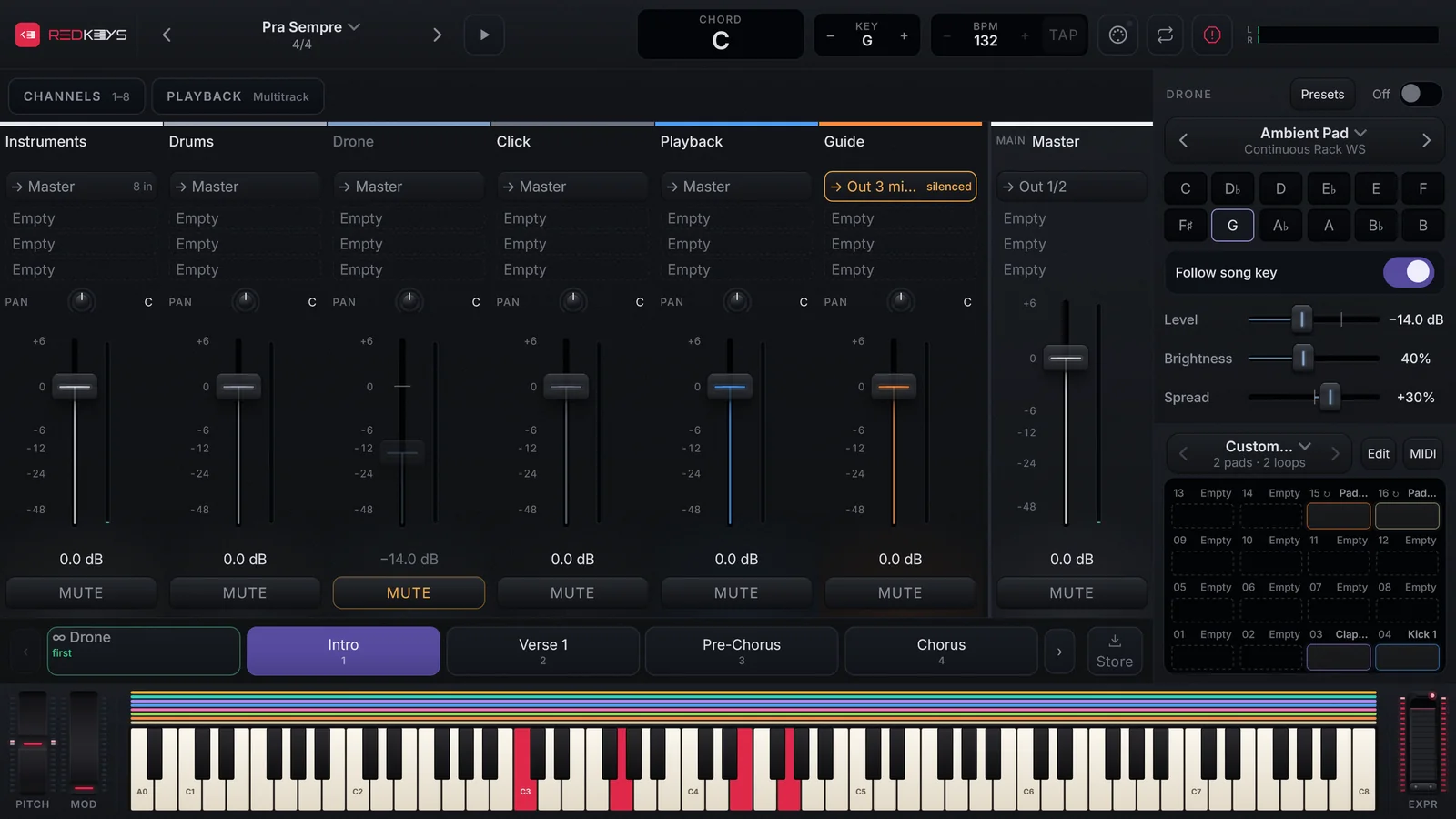
| Bus | What goes through it |
|---|---|
| Instruments | The channels (every new channel goes out through it). |
| Drums | The DrumPads kit. |
| Drone | The Drone. |
| Click | The metronome click. |
| Playback | The song’s playback (VS and multitrack). |
| Guide | The song’s guide track. |
| Master | The sum that goes to the main output. |
Outputs
In a channel’s drawer (Audio tab, Output) or a bus’s (Routing) you choose where it goes: the Instruments bus, the Master or an output of the interface (stereo pair or mono). That is how the click and the guide go only to your in-ears, never to the PA. See Outputs and buses.
If the chosen output does not exist on the connected interface, the app tells you. With Silence if this output disappears on, that sound stays silent until you pick another output; with it off, it plays through the Master. Click and Guide start with this protection on.
Effects
Each channel has 5 audio effect slots, after the instrument, and the MIDI slot before it, reserved for the MIDI effects that arrive in an upcoming update. Each bus and the Master have 3 slots, with EQ, Compressor and Limiter only (Where effects live).
- Tap Edit on the channel and open the Audio tab.
- Under Effects, tap + Effect on an empty slot.
- Pick the effect from the list (with search and categories).
- Tap the effect’s name to open its page.
On/off, Dry/Wet, order and removing: Add, change and arrange effects. Each effect has its own article in the Effects trail.
The mix per song and per part
The level, pan and Mute you leave in a song come back as you left them when you return to it. For a part to have its own mix, change it and keep it with Store (the Mix and Effects groups for channels, Buses & Master for the buses).