
Modulation: LFOs and controls
Make the wheel open a vibrato, a keyboard knob move the brightness or an LFO sway the volume.
The Modulation tab connects a source to a part of the sound. Each connection is a route: a sound has up to 5 routes and up to 5 LFOs. It starts empty; nothing moves until you add a route.
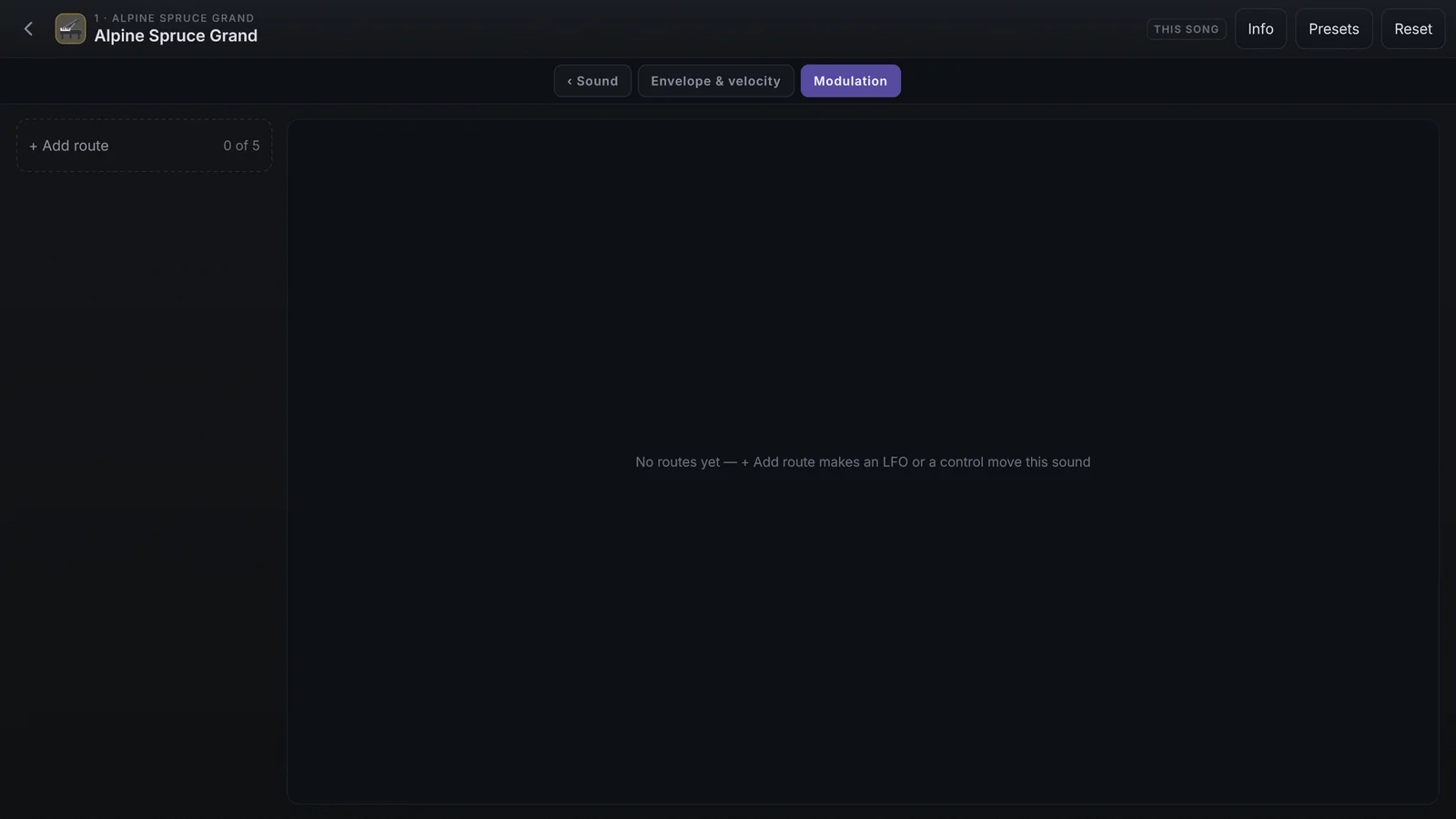
Add a route
- On the sound page, tap More › and then Modulation.
- Tap + Add route (it shows how many routes there are, out of 5). The route is born with the next free LFO and no destination: nothing moves yet.
- In Source, keep the LFO or pick another source.
- In Destination, pick what it moves.
- Set the knobs. The picture in the middle shows, live, where the LFO or the control is.
The On switch turns the route on and off and keeps its settings. Remove deletes the route.
The sources
| Source | What it is |
|---|---|
| LFO 1 to LFO 5 | A movement that repeats by itself |
| Mod wheel | The modulation wheel |
| Pitch bend | The pitch bend wheel: bottom to top, with the centre in the middle |
| Expression | The expression pedal (CC 11) |
| Velocity | How hard the note was struck |
| Aftertouch | Pressure on a key already down |
| Envelope | The Mod envelope from the Envelope tab, which starts on every note |
| MIDI CC… | Any knob or fader on your keyboard: type the CC number (0 to 127) and press Enter |
The first item of each menu is Learn: pick it and move the control on your keyboard (the wheel, a knob or a fader). Aftertouch is only in the menu. The sustain pedal and the other pedals (CC 64 to 69) never go into a route.
The destinations
The list is the same for every route: Volume, Pan, Pitch, Tone, Attack, Decay, Sustain, Release, Glide, each LFO’s depth and rate (LFO 1 depth … LFO 5 rate) and MIDI CC…. Every value shows in the destination’s own unit:
| Destination | Values in |
|---|---|
| Pitch | Semitones |
| Volume | dB, never above the sound’s level |
| Pan | From one side of the stereo to the other |
| Tone | % of Tone’s travel |
| Attack, Decay, Release, Glide | Time added to the sound’s, such as +500 ms |
| Sustain | % of the level |
| LFO depth | % |
| LFO rate | Times the speed, from ×0.25 to ×4 |
| MIDI CC… | The CC value |
MIDI CC… as a destination sends the value as if it came from your controller, to this channel only. It moves whatever is mapped to that CC: a channel’s volume, an effect, a macro.
LFO route
| On screen | What it does |
|---|---|
| Depth | How much the LFO moves the destination |
| Rate | The speed, in Hz, or in divisions of the tempo with Sync |
| Phase | Where the cycle is (0 to 360°) |
| Delay | Time with nothing from the LFO after each note |
| Fade-in | Time for the LFO to come in gradually on each note |
| Up & down / Up only | Sways around the value, or only upwards |
| Sync | Locks the speed to the song’s tempo, from 4 bars to 1/16 |
| Retrigger | Every new note restarts the cycle |
| Sine, Triangle, Square, Random, Saw up, Saw down | The wave shape |
| Controlled by | The control that opens the LFO: nothing at its bottom, the whole Depth at its top. Always on: the LFO moves all the time |
Control route
| On screen | What it does |
|---|---|
| Min | The value with the control at the bottom |
| Max | The value with the control at the top |
| Rise / Fall | Smooth the control going up and coming down (wheel, pitch bend, expression, aftertouch and CC) |
| Invert | Swaps bottom and top |
| Linear, Log, Exp, S-curve | The curve of the control’s travel |
Example: vibrato on the wheel
- Tap + Add route. The route is born with an LFO.
- In Destination, pick Pitch.
- Set Depth to +0.50 st (half a semitone) and Rate near 5 Hz.
- In Controlled by, pick Mod wheel. With the wheel down there is no vibrato; at the top, the full vibrato.