
Choose a sound
Open the sound browser, find the sound and put it on the channel.
The sound browser changes a channel’s sound in the open song. Tapping a sound starts playing it right away.
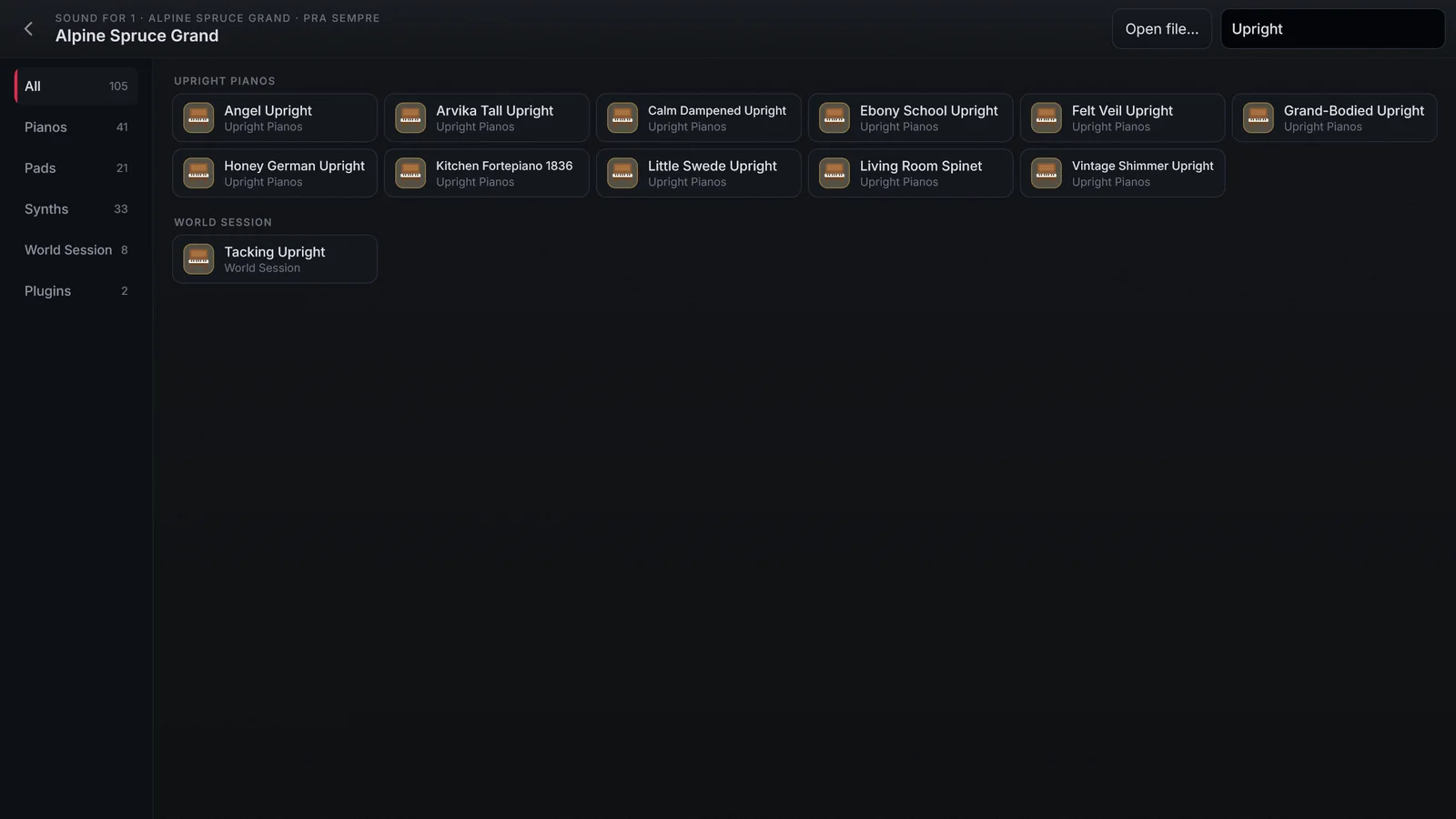
Open the browser
- On the stage, tap Edit on the channel. The channel drawer opens on the Sounds tab.
- Tap Change. On a channel with no sound yet, the button says Choose.
- Pick a category on the left (All shows everything) or type in Search.
- Tap the sound. While it loads, its card says Loading and a thin bar runs inside it. When it is ready, the card is marked as the current sound.
What the screen shows
- The categories, with how many sounds each has: All, the library’s (such as Pianos, Synths, Pads and World Session), My sounds (yours) and Plugins (Aurora and Tonewheel Organ). Only categories with at least one sound appear.
- The search filters the list as you type: by sound name, category and group.
- The sound that is playing is already marked and in view: the list opens scrolled to it.
- The card’s bottom line: in All, the sound’s group or category (such as Grand Pianos or Pads), and the list is split under those headings; inside a category, the library the sound comes from (Yours for your own sounds).
- Library, next to the search, only appears when more than one library is installed: it shows the sounds of one library or of all.
- Inactive on a card means your account no longer has that sound’s library.
Sound info
Info, next to Change, opens the sound’s card: name, category, library and what its creator wrote about it. A field the creator has not filled in shows Set by the instrument’s creator. Beside it are the other sounds of the same category: tap one to use it on that channel.