
Transport: Play, Key and BPM
Use Play, the live key and tempo, TAP, the part loop, Panic and the end of the song.
The transport lives at the top of the screen, the same in every size: Play, Key and BPM with TAP, the part loop and Panic.
Play and Stop
- Play/Stop sits right after the song. On a computer, the space bar does the same.
- While running it pulses green in time: strong on beat 1, light on the others.
- With the transport running, a song change waits for the head of the next bar. A part change only waits in a song with a backing track or multitrack; without audio it is immediate. See Change parts and songs.
- The app opens stopped.
Key, BPM and TAP
KEY (the live key, up to 6 semitones either way) and BPM with TAP (30 to 300 BPM) are in Key and tempo: how to change them, how long a change lasts and why they are greyed out in a song with a backing track or multitrack.
Part loop and Panic
- The loop button, next to Panic, repeats the current part until you ask for another part (then it turns itself off). It only works in songs with a backing track or multitrack.
- Panic releases every note and stops every pad loop.
Play settings
In Settings:
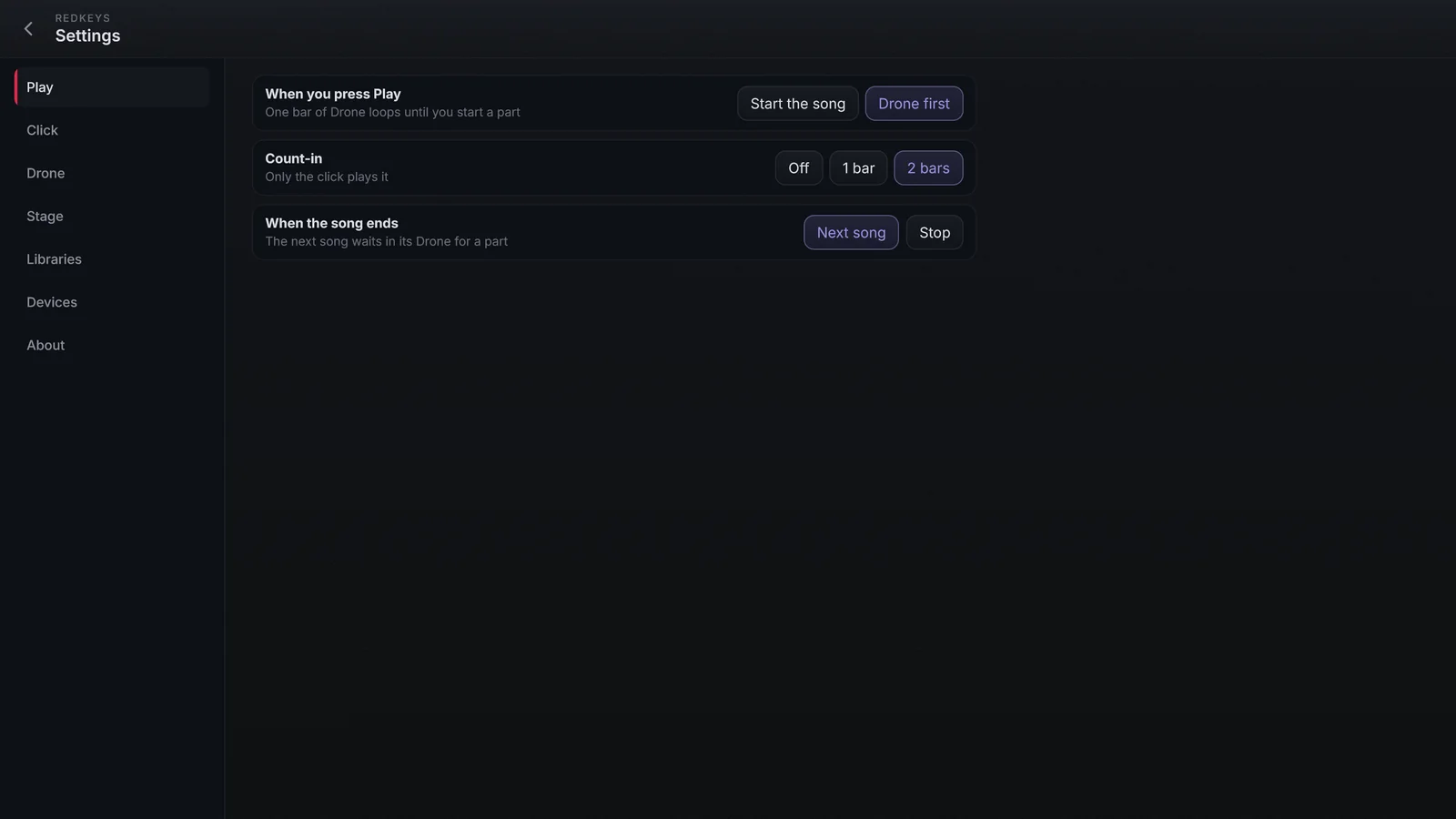
| Where | Setting | Options |
|---|---|---|
| Play | When you press Play | Start the song (the part on screen starts, after the count-in) or Drone first |
| Play | Count-in | Off, 1 bar or 2 bars (only the click plays it) |
| Play | When the song ends | Next song or Stop (back at the first part) |
| Stage | Stop needs two taps | Against an accidental Stop: 2.5 s for the second tap |
When the song ends applies to songs with a backing track or multitrack, which end on their own. With Next song, the next song in the setlist comes in (or the one you picked for later); with Drone first on, it waits on its Drone.