
The timeline
Mark the parts, adjust the tempo map and place pad loops over the right sections of a song with audio.
The timeline is where a song with a backing track or multitrack takes shape: markers become the parts, the tempo row sets the timing and the loop lanes say when each pad loop comes in.
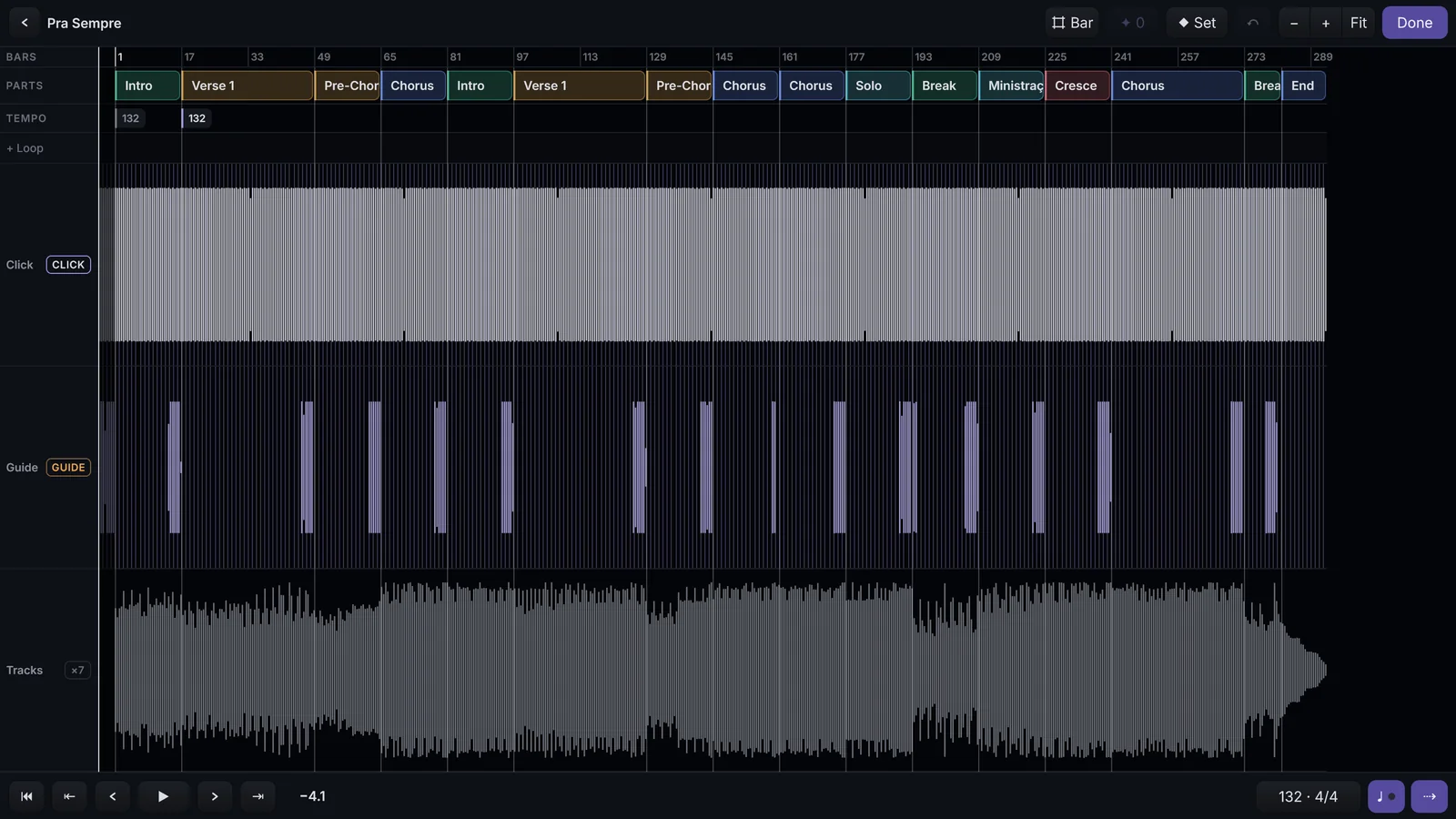
To open it: EDIT SETLIST › the song › Audio tab › Timeline › (or Mark the parts ›, in a song with no parts yet).
Mark the parts
- Tap the ✦ button to create markers where the guide counts in to each part. Or put the playhead in place and tap Set (M key).
- Name each marker: type, pick a suggestion (Intro, Verse, Pre-Chorus, Chorus, Bridge, Solo, Interlude, Outro) or use keys 1 to 9.
- Tap Done. The markers become the song's parts.
Tapping a marker's name opens the part's window: name, Earlier and Later to move it, the part's key and Delete the marker. The first marker is bar 1.
Tempo, time signature and key
The tempo map comes from the click. On the TEMPO row, each point can be:
| Option | What it does |
|---|---|
| Jump | The tempo changes at once there. |
| Ramp to next | The tempo glides from there to the next point. |
| Time signature from here on | Changes the time signature from there on. |
The tempo button at the top of the timeline can also halve or double the detected tempo (÷2, ×2). A part can change key: choose the key in its window; the Drone with Follow and the sequences follow.
Pad loops in the song
- On the + Loop lane, tap under a part and pick the pad (Sequence pads only).
- The block starts covering the whole part. Adjust it with From and To, drag the body to move it and the right edge to stretch it. Whole part goes back to the whole part.
- On stage, the pad runs inside the block and stops when it leaves it.
Shortcuts
| Key | Does |
|---|---|
| Space | Play / Stop |
| M or Enter | Sets a marker |
| [ and ] | Previous and next marker |
| ← and → | One grid step; with a marker selected, moves the marker |
| Home | Back to the start |
| 1 to 9 | Gives the selected marker the suggested name |
| Delete or Backspace | Deletes the selected marker or loop |
| Ctrl+Z | Undo |
| Esc | Clears the selection; with nothing selected, leaves |