
Your first show in 10 minutes
Create a song with parts, put a sound on a channel, play and switch parts.
This walkthrough takes you from an empty app to a song with three parts playing. The first time, with no song yet, REDKEYS opens straight in EDIT SETLIST.
1. Create the song
- Tap the song name at the top of the stage and choose Edit. (The first time, EDIT SETLIST is already open.)
- Choose + New song. The new song opens on the Info tab.
- In Title, type the song name.
- In Key, tap the key and choose Major or Minor. The key comes first: every part starts in it.
- In Tempo, type the tempo or tap it with Tap.

2. Create the parts
- Open the Parts & form tab.
- Tap + Intro. The part is created and selected.
- Tap Add to form. It goes into Form, the order you play.
- Repeat with + Verse and + Chorus (or + Custom… for another name). The same part can go into the Form more than once.
- Choose Save: Saved on this device shows. Then Done.
3. Put a sound on a channel
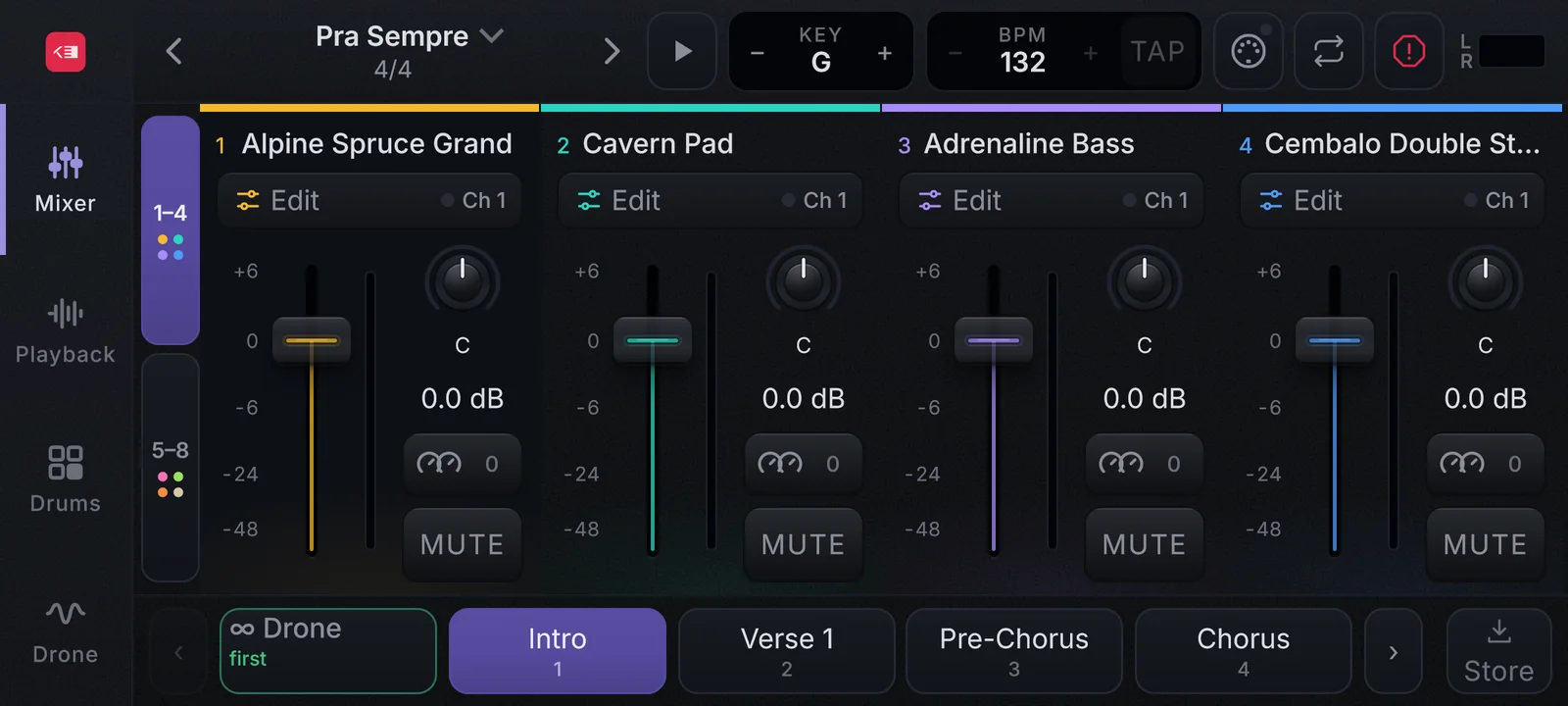
- On the stage, after the channels, tap the dashed + Channel box. In the Phone layout it is in the Mixer view.
- The sound list opens for the new channel. Use Search or pick a category, and tap a sound.
- The channel takes the sound’s name and a colour. Edit, at the top of the channel, opens its sounds and the Sounds, Macros, MIDI, Audio and Channel tabs.
A new channel listens to All devices on MIDI channel 1 (the Ch 1 next to Edit). If your keyboard sends on another channel, open Edit › MIDI, tap Learn and play a note on the keyboard.
4. Play and switch parts
- Play the keyboard. The sound comes out and the chord shows in CHORD, at the top.
- In the parts bar at the bottom, tap Verse. The switch is instant and does not cut the notes you are holding.
- On a computer, the ← and → arrow keys walk through the parts. So does a pedal or a controller button once it is mapped with MIDI Learn.
- Changed a channel’s level in this part and want to keep it? Tap Store, at the end of the parts bar.
Next: build the whole setlist, turn sounds on and off per part and map your pedal.