
A tour of the stage
Learn what each area of the show screen does, from top to bottom.
The stage is the screen that stays open during the show. Everything you need to play is on it: the song and the part, the channels with your sounds, the keyboard and the wheels.
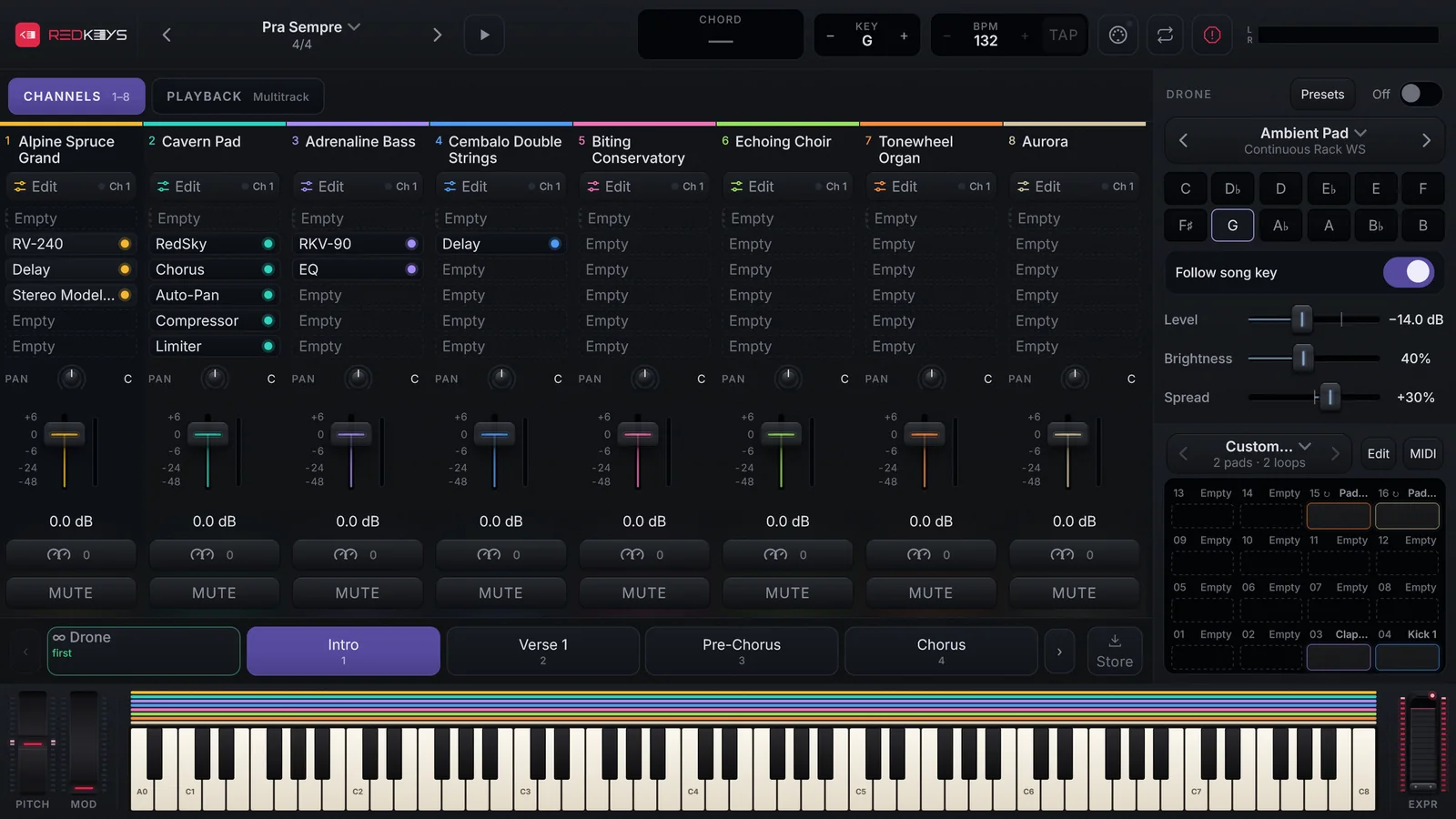
The top bar
From left to right:
| What you see | What it does |
|---|---|
| REDKEYS logo | Opens Settings. |
| ‹ song name › | The arrows go to the previous and the next song. Tapping the name opens the setlist. The song’s time signature shows under the name. |
| ▶ Play | Play and Stop. The computer’s space bar does the same. |
| CHORD | The chord you are playing on the selected channel. |
| − KEY + | The key you play in. The buttons move it a semitone down or up. |
| − BPM + and TAP | The song tempo and tap tempo. |
| MIDI icon | Opens the MIDI inputs, devices and mapping. A green light flashes when MIDI arrives. |
| Loop icon | Repeats the current part (only in songs with a VS or multitrack). |
| Red icon | Panic: releases every note and stops the pad loops. |
| L / R meter | The Master level. Tap it to open the Master and the buses; tap again to go back. |
The channels
The channels sit side by side in the middle, like a console. Each one shows its number and name in its colour, the Edit button with the MIDI channel, the effects, PAN, the fader with the level in dB, the macros and MUTE. Tap a channel to select it: the on-screen keyboard, the wheels and the chord follow the selected channel. See Channels and sounds.
Above the channels, CHANNELS shows the channels and PLAYBACK shows the tracks of the song’s VS or multitrack (Playback).
The parts bar
Under the channels are the song’s parts (Intro, Verse, Chorus…), in the order you play them. Tap a part to go to it. The arrows on each side show earlier and later parts without changing part. At the end of the bar is Store, which keeps what you changed in the part (Store what you changed in a part).
The Drone and the DrumPads
On the right are the Drone (the continuous pad, with one key per pitch) and the 16 DrumPads. They have their own articles: Drone and DrumPads.
The keyboard and the wheels
At the bottom, an 88-key keyboard with the PITCH and MOD wheels on the left and EXPR on the right. The coloured bars above the keys show where each channel plays. See The on-screen keyboard and wheels.
In the Phone layout
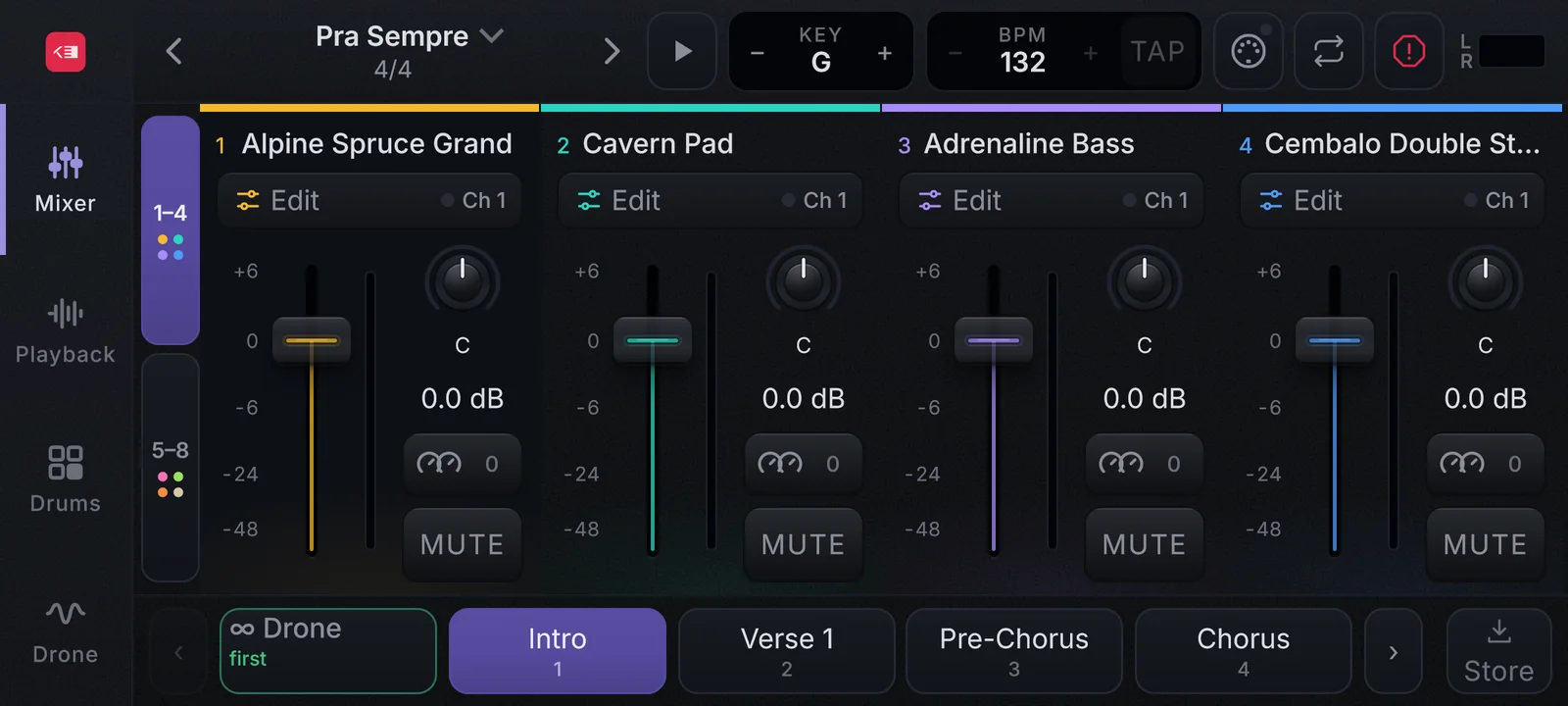
In the Phone layout the screen shows one thing at a time: the left menu switches between Mixer, Playback, Drums and Drone. Channels show 4 at a time (tap 1–4 or 5–8, or swipe sideways). There is no on-screen keyboard, and the chord takes the place of KEY while you hold notes.
Computer keyboard shortcuts
| Key | What it does |
|---|---|
| Space | Play / Stop |
| ← and → | Previous and next part |
| 1 to 8 | Selects channel 1 to 8 |
| M | Switches between the channels and the Master |
| F11 | Full screen |
| Esc | Closes the window or drawer on top |